Pro AI Tools for Deep-Sky Astrophotography · iPhone & iPad
Reveal the deep sky
hidden in your images
Crop, denoise, sharpen, and upscale — four pro-grade AI tools tuned for deep-sky astrophotography. Built for nebulae, galaxies, and star clusters, powered by Topaz Labs. Chain them together, compare before and after, export full-resolution results. No desktop required.

Built for deep-sky imaging
Deep-sky objects don't photograph easily
Hours of careful exposure, tracking, and stacking a faint nebula or distant galaxy — and still, noise obscures the subtle structure you were chasing. Your phone's built-in processing is tuned for daylight: point it at the Orion Nebula and it flattens star colors and smudges dust lanes.
PixADair brings Topaz Labs' professional AI to your iPhone and iPad — the same pro-grade engine many deep-sky astrophotographers already use on their desktops — wrapped in a multi-tool workflow purpose-built for nebulae, galaxies, and star clusters.
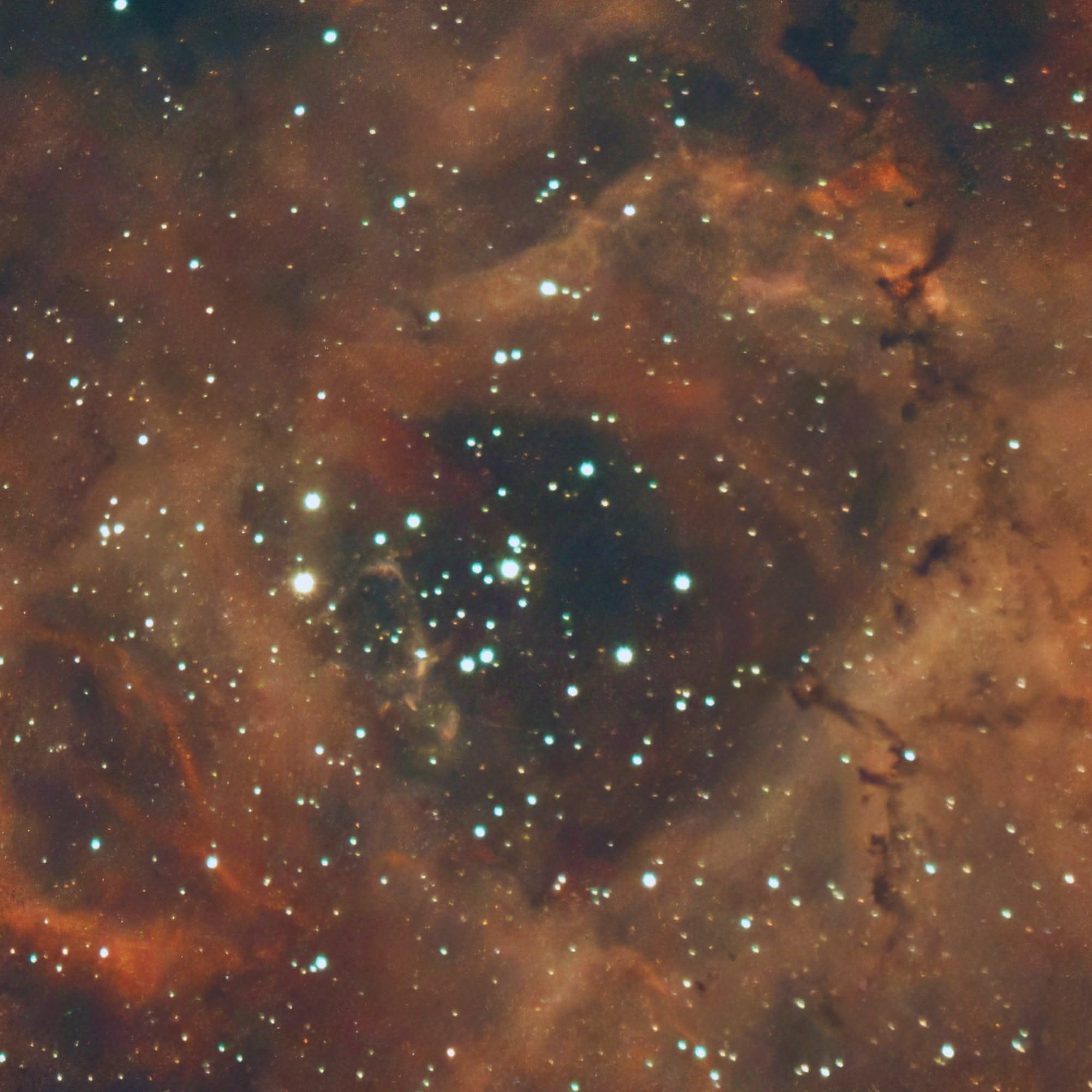
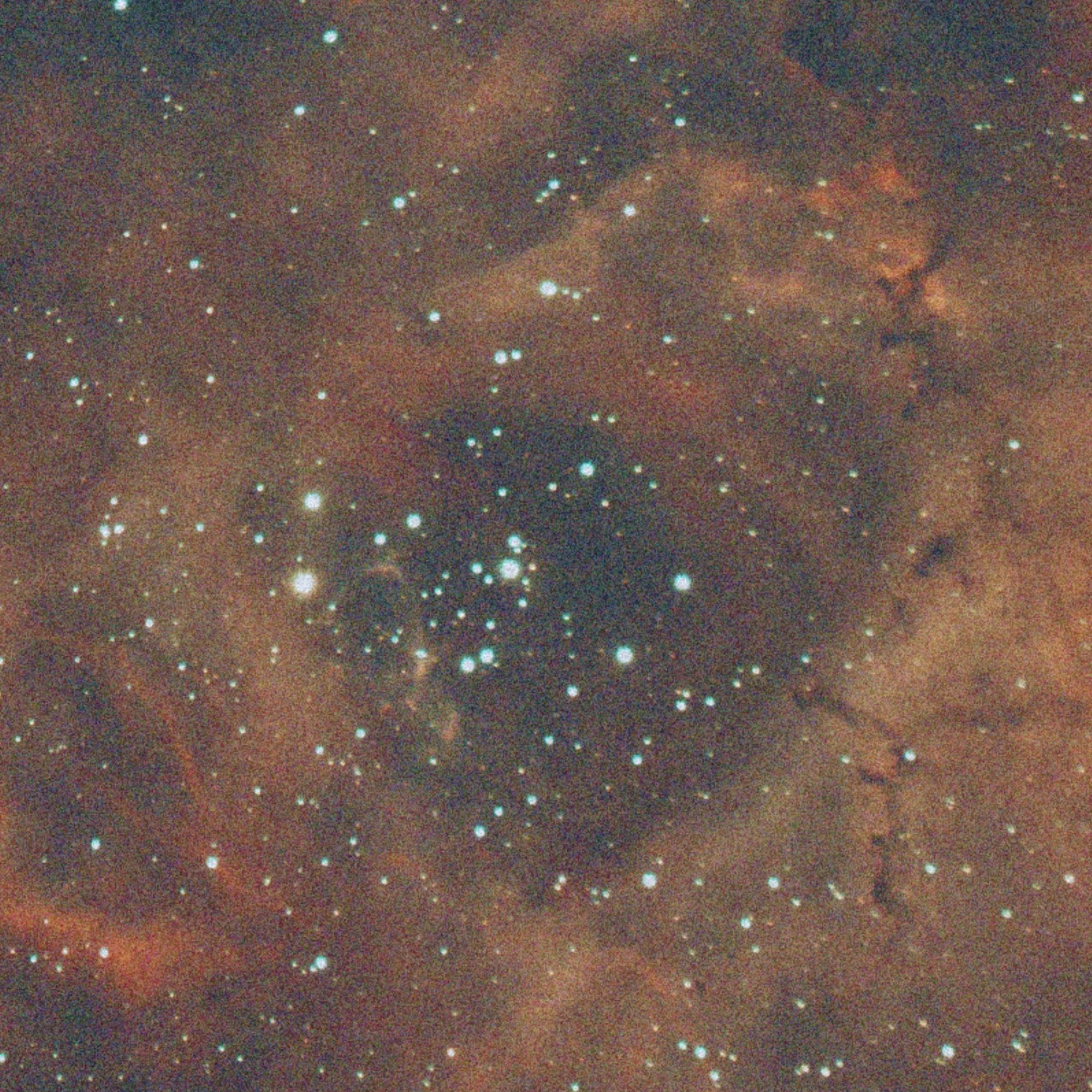
Drag the slider to compare. Simulated demonstration of noise reduction.
Multi-tool editor
Four pro tools, one deep-sky workflow
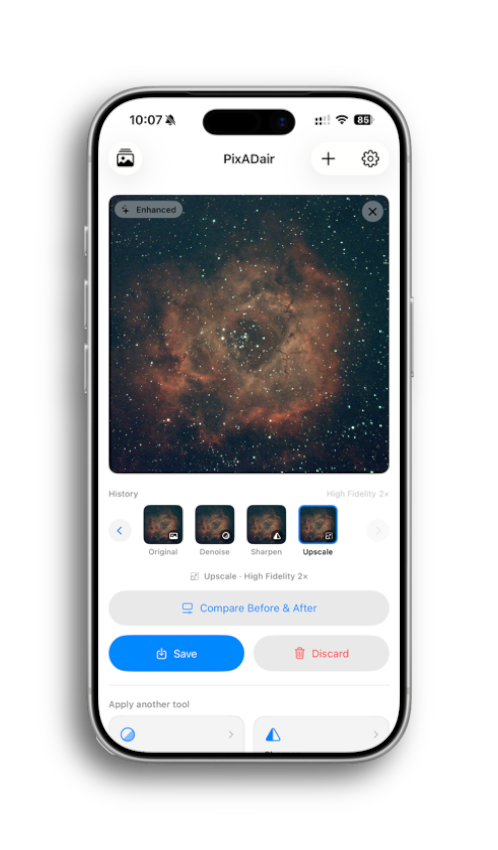
Chain Crop, Denoise, Sharpen, and Upscale in any order. Each step is saved to a scrollable history — scrub back, branch off, compare any step against the original. Your full edit chain, always reversible.
Three denoise models, three deep-sky targets
Three distinct Topaz Labs denoise models, labelled for deep-sky noise scenarios. Normal for widefield Milky Way and light-pollution glow. Strong for stacked nebula and galaxy exposures. Extreme for the heaviest noise — narrowband hydrogen-alpha, faint dust lanes, deep integrations. Pick the model that fits your target.
See every detail, side by side
A full-screen comparison view with synchronized zoom and pan. Drag the divider. Pinch to zoom into pixel-level detail up to 10×. Compare any step against the original — know exactly what each tool preserved and what it changed.
Export your way
PNG. JPEG. TIFF. Full-resolution output, straight to your photo library — ready for further processing in whatever editor you already trust.
How it works
Four steps to clarity
-
Import
Select from your photo library or share directly from any app.
-
Edit
Pick a tool — crop, denoise, sharpen, or upscale — and dial in parameters.
-
Chain
Apply another tool. Each step saves to your history — scrub back or branch off at any point.
-
Compare & Save
Compare before and after with the interactive slider, then export at full resolution.
Start revealing what's
really there
Free to download. Requires a Topaz Labs API key for AI tools. Crop runs locally at no cost. Processing happens in the cloud — your iPhone and iPad stay fast.